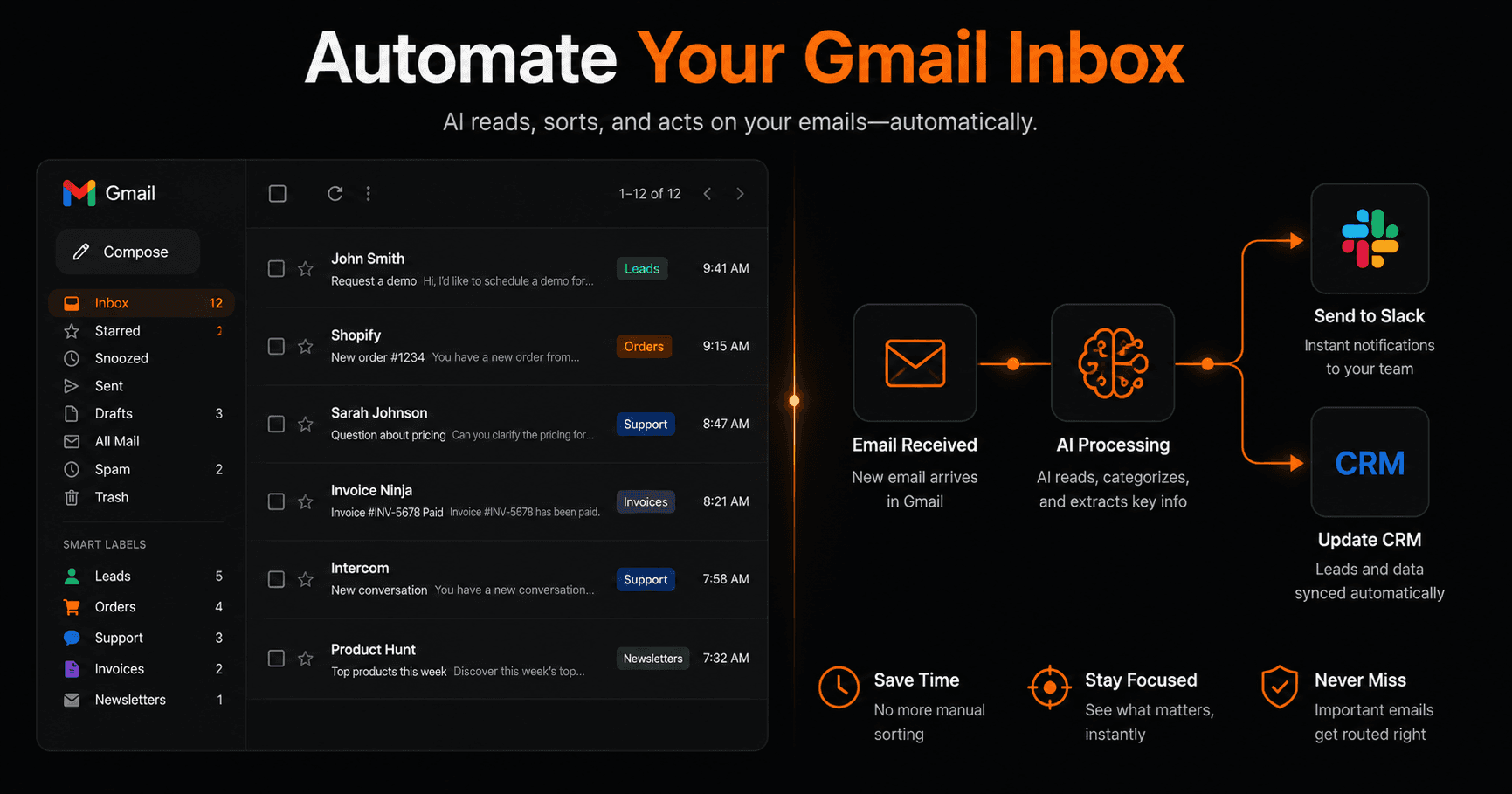
The average professional spends 2.5 hours a day on email. Most of that time isn't reading important messages — it's sorting, labeling, forwarding, and responding to the same types of emails over and over. Here's how to automate your Gmail inbox so it works for you instead of draining you.
What Gmail automation actually means
Gmail automation doesn't mean turning off your inbox. It means connecting Gmail to other tools and adding intelligence to what happens when emails arrive — so the boring, repetitive parts happen automatically without you touching them.
The three things you can automate in your Gmail inbox:
- Routing — sending emails (or their contents) to the right place: Slack, CRM, a spreadsheet, a Notion database
- Classification — using AI to read each email and categorize it: sales inquiry, support request, newsletter, spam
- Response — sending automatic replies, follow-ups, or acknowledgements based on what the email contains
The 5 most powerful Gmail automations
1. New email → Slack notification
The most common Gmail automation. Every time an email arrives from a specific sender, domain, or matching a keyword, a Slack message fires instantly — with the sender name, subject, and a snippet of the body.
Use this to: get alerted when a client emails you, monitor emails from specific vendors, or surface support requests to your team channel in real time.
2. New email → CRM contact created
When a new person emails you, their name and email address are automatically added as a contact in HubSpot, Pipedrive, or Close CRM. If they already exist, the contact is updated with a note that they reached out.
This eliminates manual CRM entry entirely. Every person who emails you lands in your pipeline automatically.
3. AI email classification → routing
An AI node reads every incoming email and classifies it: sales inquiry, support request, partnership proposal, newsletter, or spam. Based on the classification, the workflow routes it differently — sales to HubSpot, support to a Slack channel, newsletters to archive.
This is where Gmail automation becomes genuinely intelligent. Instead of fixed rules (if subject contains “invoice”), the AI understands context and routes based on actual meaning.
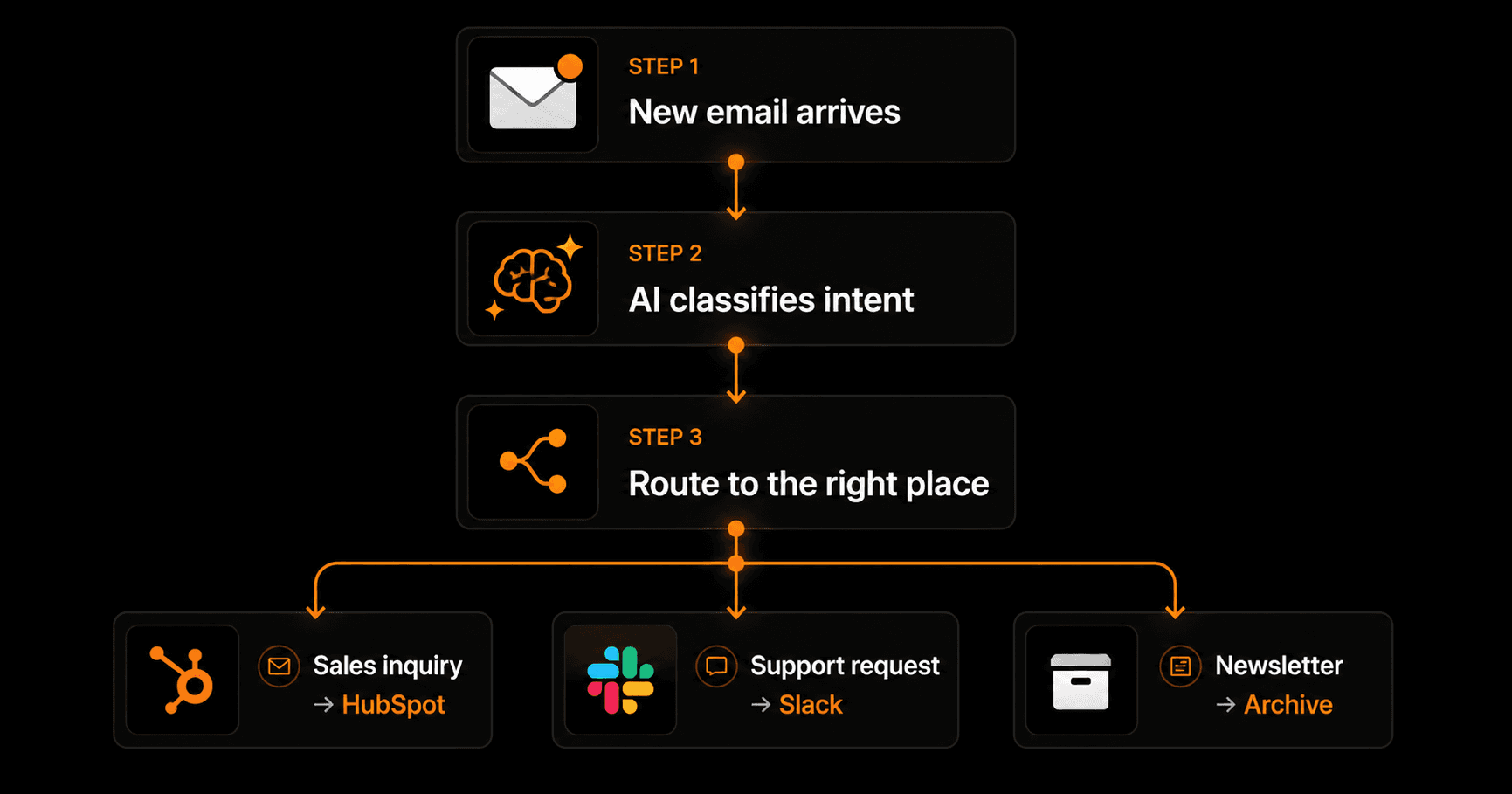
One workflow handles all three email types — sales, support, and newsletters — automatically.
4. New email → Google Sheets log
Every email from a specific sender or matching a filter gets logged to a Google Sheet automatically — date, sender, subject, and a summary. Useful for tracking client communications, logging support tickets, or keeping a record of all vendor emails.
5. Email trigger → automated reply
When a specific type of email arrives — a new inquiry, a booking request, a pricing question — an AI-written reply is sent automatically. The reply is personalised based on the email content, not a generic template.
Vendarwon Flow's Gmail integration supports replying in-thread, so the automated response appears as a natural continuation of the conversation.
How to build a Gmail automation on Vendarwon Flow
- Connect Gmail. Go to Integrations in Vendarwon Flow and authorize your Google account. This takes about 60 seconds and grants access to Gmail, Google Sheets, Calendar, and Drive in one step.
- Describe your automation. Type what you want: “When I receive a new email, check if it's a sales inquiry. If yes, create a contact in HubSpot and send a message to #sales in Slack.”
- Review the workflow. The AI builds a multi-step workflow including an AI classification node and the two downstream actions. You can see every step and adjust anything.
- Activate. One click. The workflow polls your Gmail every 2 minutes and fires automatically whenever a matching email arrives.
What you can filter on
Gmail automations on Vendarwon Flow can be triggered and filtered by:
- Any new email (all inbound)
- Emails from a specific sender or domain
- Emails matching a subject keyword
- Emails with attachments
- AI classification result (e.g., only fire if AI says “sales inquiry”)
Common questions about Gmail automation
Will automated replies look like they came from me?
Yes — automated Gmail replies are sent from your actual Gmail account and appear in the email thread as normal replies. Recipients cannot tell the difference from a manually written response.
Does this work with Google Workspace accounts?
Yes. Vendarwon Flow works with both personal Gmail accounts and Google Workspace (formerly G Suite) business accounts.
How often does the workflow check for new emails?
Vendarwon Flow polls Gmail every 2 minutes. Most emails are processed and actioned within 2 minutes of arrival.
Can I avoid triggering on my own sent emails?
Yes — Vendarwon Flow automatically skips emails sent by your own address to prevent loops. Only inbound emails from other senders trigger the workflow.
What if I want the automation to stop after hours?
You can add a condition node that checks the current time and skips actions outside business hours. Or simply leave it running 24/7 — the notifications will be waiting when you wake up.