Every support inbox has the same 20 questions. “Where's my order?” “How do I cancel?” “Can I get a refund?” Most small businesses spend 15+ hours a week answering these manually — one by one, from scratch. AI customer support automation changes that. You can handle 80% of incoming questions instantly and automatically, while routing the 20% that actually need a human to the right person within seconds.
This guide walks you through exactly how to build it — from triage to auto-reply to escalation — without any code and without losing the personal touch your customers expect.
What AI customer support automation actually looks like
Before we get into the how, it's worth being clear about what this actually is — because “AI customer support” means very different things depending on who's selling it.
We're not talking about a chatbot that frustrates everyone until they give up and close the window. We're talking about an automation workflow that:
- Reads every incoming support email or message the moment it arrives
- Classifies it by type: order issue, billing, how-to question, bug report, or complaint
- Automatically replies to routine questions with accurate, personalized responses
- Routes anything complex — complaints, refund requests, technical bugs — to a human with full context already prepared
- Logs everything so nothing slips through the cracks
The result: customers with simple questions get answers in under 60 seconds, 24 hours a day. Your team only touches the messages that genuinely need judgment.
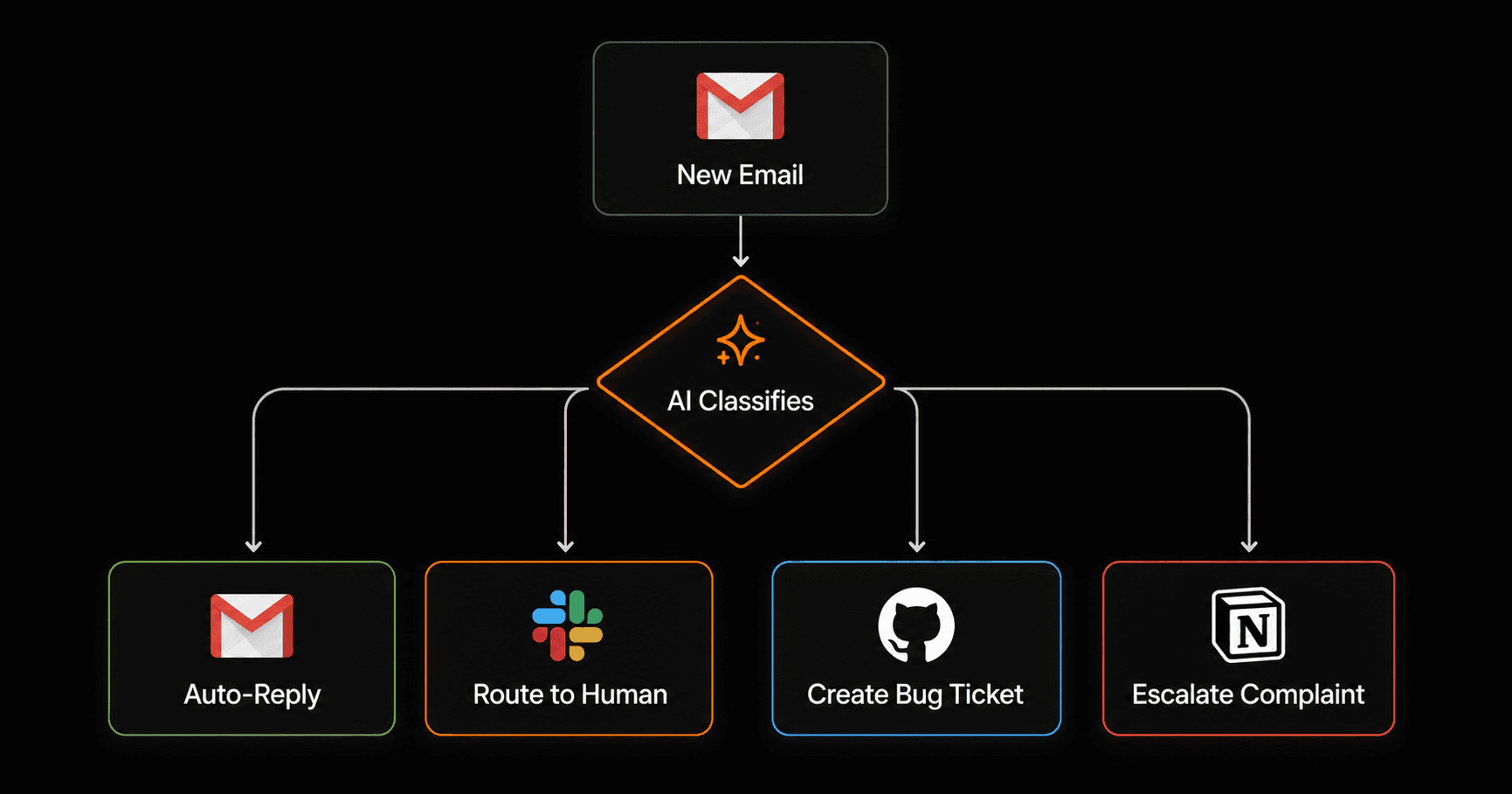
The core workflow: every message is classified in seconds, then either answered automatically or routed with context
The four types of support tickets
Most support queues break down into four buckets. Each one gets handled differently by your automation:
- Routine questions— “How do I reset my password?”, “Where can I download my invoice?”, “What are your hours?” These have one correct answer every time. AI handles 100% of these automatically.
- Order and account lookups— “Where's my order?”, “Can you change my delivery address?” These require pulling data from your system. AI drafts the reply; your workflow fetches the order status and fills it in.
- Complaints and refund requests — These need a human touch, but AI can prepare everything: summarize the issue, pull the order history, and draft a proposed resolution. Your team approves or edits and sends in one click.
- Technical bugs — AI classifies and tags the severity, links to any related previous tickets, and creates a task in your project tracker (GitHub, Linear, or Notion). Your engineering team sees it immediately.
Step 1 — Build the triage workflow
The triage workflow is the foundation. Every incoming support message passes through it. Here's the structure:
Trigger: New email arrives in your support inbox (Gmail or any email via webhook)
Action 1 — AI classification: Pass the email subject and body to an AI node with this prompt:
Email subject: {{trigger.payload.subject}}
Email body: {{trigger.payload.body}}
Reply with only the category name. Nothing else.
Action 2 — Branch on classification:Use a condition node to check the AI's output, then route to four separate paths based on category.
In Vendarwon Flow, you describe this whole thing in plain English: “When a new email arrives in Gmail, classify it as routine, order lookup, complaint, or bug, then branch based on the result.” The AI builds the workflow for you.
Step 2 — Auto-reply for routine questions
Once a message is classified as ROUTINE, a second AI node generates a specific reply:
Answer this customer question accurately and warmly. Keep it under 100 words.
Question: {{trigger.payload.body}}
Use this knowledge base: [paste your FAQ answers here]
The workflow then sends this reply directly from your Gmail account, in-thread, so it looks exactly like a human response. Customers routinely rate these interactions as highly as human responses — because they're fast, accurate, and personalized.
A critical tip: Give the AI your actual answers, not generic instructions. Paste your real FAQ content, your actual return policy, your real shipping times. The more specific your knowledge base, the better the replies.
Step 3 — Triage complaints and refund requests to a human
Complaints should never be auto-replied to without a human in the loop. But that doesn't mean humans have to do all the work. When the AI classifies a message as a complaint or refund request, the workflow:
- Pulls the customer's order history from your CRM or Shopify store
- Summarizes the issue in one paragraph
- Drafts a proposed resolution based on your policy
- Sends a Slack notification to your support team with all of this context
- Waits for a human to approve, edit, and send the response
Your team member spends 45 seconds on what would have taken 8 minutes of email archaeology. Response time drops from hours to minutes. Customer satisfaction goes up.
This is where Vendarwon Flow's human-in-the-loop approval feature comes in. The workflow pauses at the “approval” node, sends your team a Slack message with an approve/edit/send button, and resumes the moment they respond.
Step 4 — Route bugs to your product team
Bug reports need to reach your engineering team immediately, tagged with the right severity. When the AI detects a BUG classification:
- AI extracts: what the user was trying to do, what happened instead, any error messages or screenshots mentioned
- Workflow creates a new issue in GitHub, Linear, or Notion with this structured data
- Slack notification sent to the engineering channel with the issue link
- Auto-reply sent to the customer: “We've received your report and our team is looking into it. You'll hear from us within 24 hours.”
Nothing falls through the cracks. Every bug is logged and tracked. The customer gets an instant acknowledgment. Your engineers get a clean, structured report.
What “good” looks like — benchmarks to aim for
Once your automation is running, track these metrics weekly:
- Auto-resolution rate: Aim for 60–80% of tickets resolved without human intervention. Start lower (30–40%) and tune your prompts as you learn what questions repeat.
- First response time: Should drop to under 2 minutes for automated replies. Human-routed tickets under 4 hours.
- Customer satisfaction (CSAT): Ask one question after resolution: “Did we answer your question? Yes / No.” Aim for 85%+ yes on automated replies.
- Hours saved per week: Track this explicitly. Most teams see 8–15 hours/week reclaimed after the first month.
How to build this in Vendarwon Flow
Here's the fastest path to getting this running:
- Connect Gmail — Go to Integrations and connect your Google account. This enables the Gmail email trigger.
- Describe the workflow — In the chat builder, type: “When a new email arrives in Gmail, use AI to classify it as routine, complaint, order issue, or bug. If routine, auto-reply. If complaint, summarize it and send a Slack notification to my team. If bug, create a Notion task.”
- Review and adjust — The AI generates the full workflow. Open the visual editor to see the branching logic and add your actual knowledge base content to the AI nodes.
- Test with real emails — Forward 5–10 real support emails from your inbox and watch how they get classified. Tune the AI prompt based on what you see.
- Activate — Toggle it live. From this point, every new email triggers the workflow automatically.
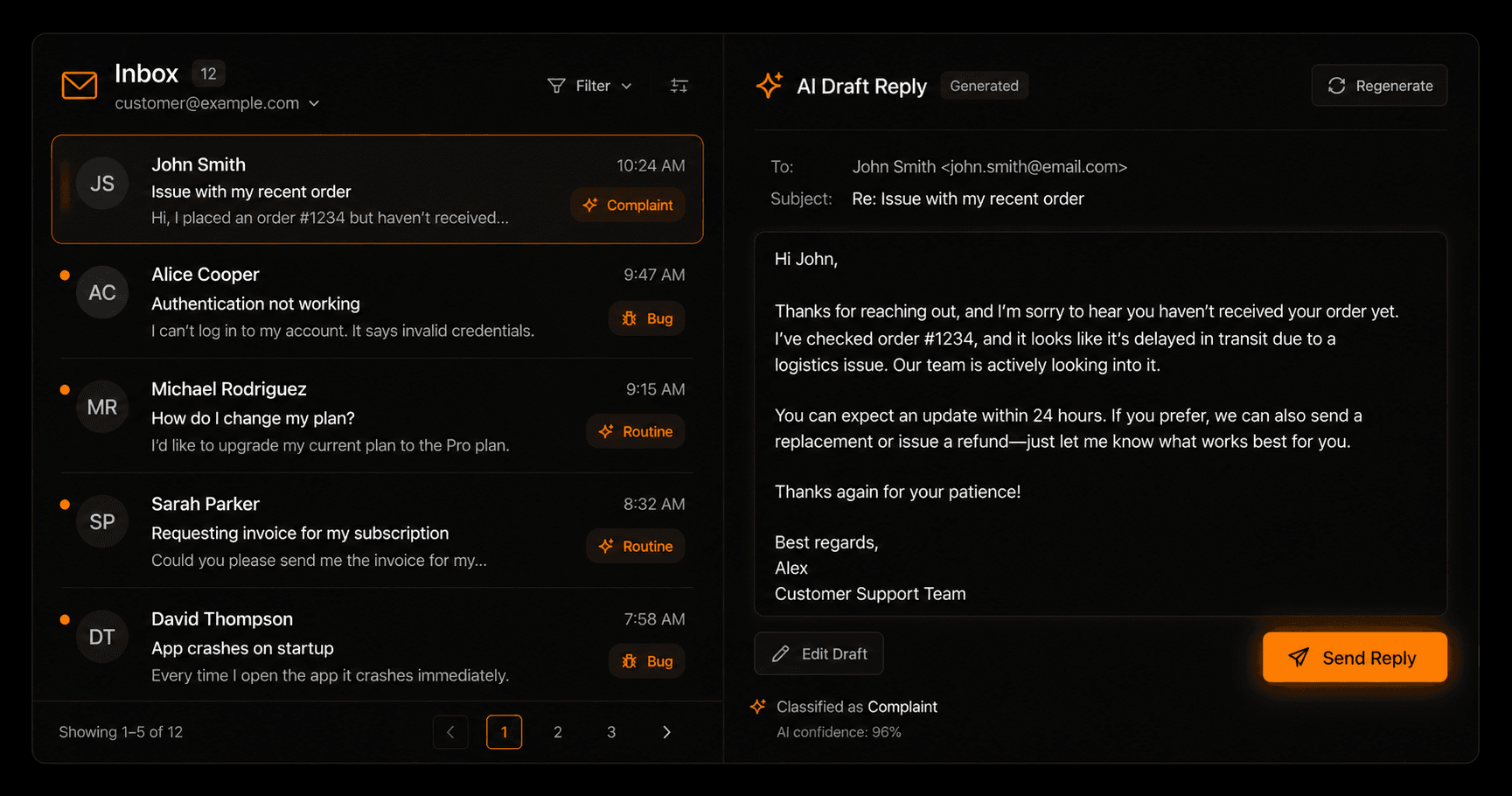
Most teams automate 60–80% of support tickets within two weeks of going live
Common mistakes to avoid
1. Auto-replying to complaints. Never. Complaints need a human to approve the response, even if AI drafts it. An automated reply to an angry customer that misses the tone will cost you the relationship.
2. Using generic AI prompts.“Answer customer questions helpfully” produces generic answers. Paste your actual policies, actual product details, actual pricing. Specificity is everything.
3. Not logging everything.Every automated reply should be logged — to a Google Sheet, Notion database, or your CRM. When a customer escalates and says “I was told X,” you need to see what was sent.
4. Setting it and forgetting it.Review your auto-resolution rate and CSAT weekly for the first month. The first version of your prompts won't be perfect. Tune them based on what's getting misclassified or where customers reply with “that didn't answer my question.”
5. Automating before you have enough tickets.If you're getting fewer than 10 emails a week, manual is fine. Build this automation when support starts taking more than 3 hours a week to manage.
The two-week rollout plan
Week 1: Build and test with observation mode only. The workflow classifies and prepares drafts, but a human reviews and sends everything. Use this week to see how accurate the classification is and refine your prompts.
Week 2:Enable auto-reply for ROUTINE tickets only. Monitor CSAT on automated replies daily. Keep human-in-the-loop for everything else. If CSAT on automated replies is above 80%, you're good. If not, look at which questions are getting weak answers and improve those specifically.
After week 2, you'll have a clear picture of your auto-resolution rate and confidence in the quality. Most teams hit 60%+ automation at this point and never look back.
Frequently asked questions
Won't customers be able to tell they're talking to AI?
Sometimes — and that's fine. What customers care about is speed and accuracy, not whether a human or AI responded. A correct answer in 30 seconds beats a human reply in 4 hours. If you write your prompts in your brand voice and keep responses concise and warm, the quality is indistinguishable for routine questions.
What if the AI classifies something wrong?
Build a fallback. Add a condition: if confidence is low or the email is unusually long, route to a human instead of auto-replying. You can also add a “catch-all” branch that sends anything unclassified to your Slack for manual review. Over time, misclassifications drop as you refine your prompts.
Does this work with support tools like Intercom or Zendesk?
Yes — most support platforms support webhooks or email forwarding. You can forward a copy of every incoming ticket to a Gmail address your workflow monitors, or trigger your workflow via webhook from Zendesk. The triage logic is the same regardless of where the ticket lives.
How much does it cost to run?
On Vendarwon Flow's Starter plan ($9/month), you get 2,000 executions. A support workflow with 50 incoming tickets per day uses roughly 1,500 executions per month — well within Starter. The free plan (100 executions) handles about 3 tickets per day, which is enough for a very early-stage business.
Should I tell customers they're talking to AI?
We recommend being transparent. A simple line at the bottom — “This response was prepared automatically. Reply if you need more help and a team member will follow up.” — sets expectations correctly and gives customers an easy escalation path. It also tends to reduce negative reactions if the answer isn't perfect.