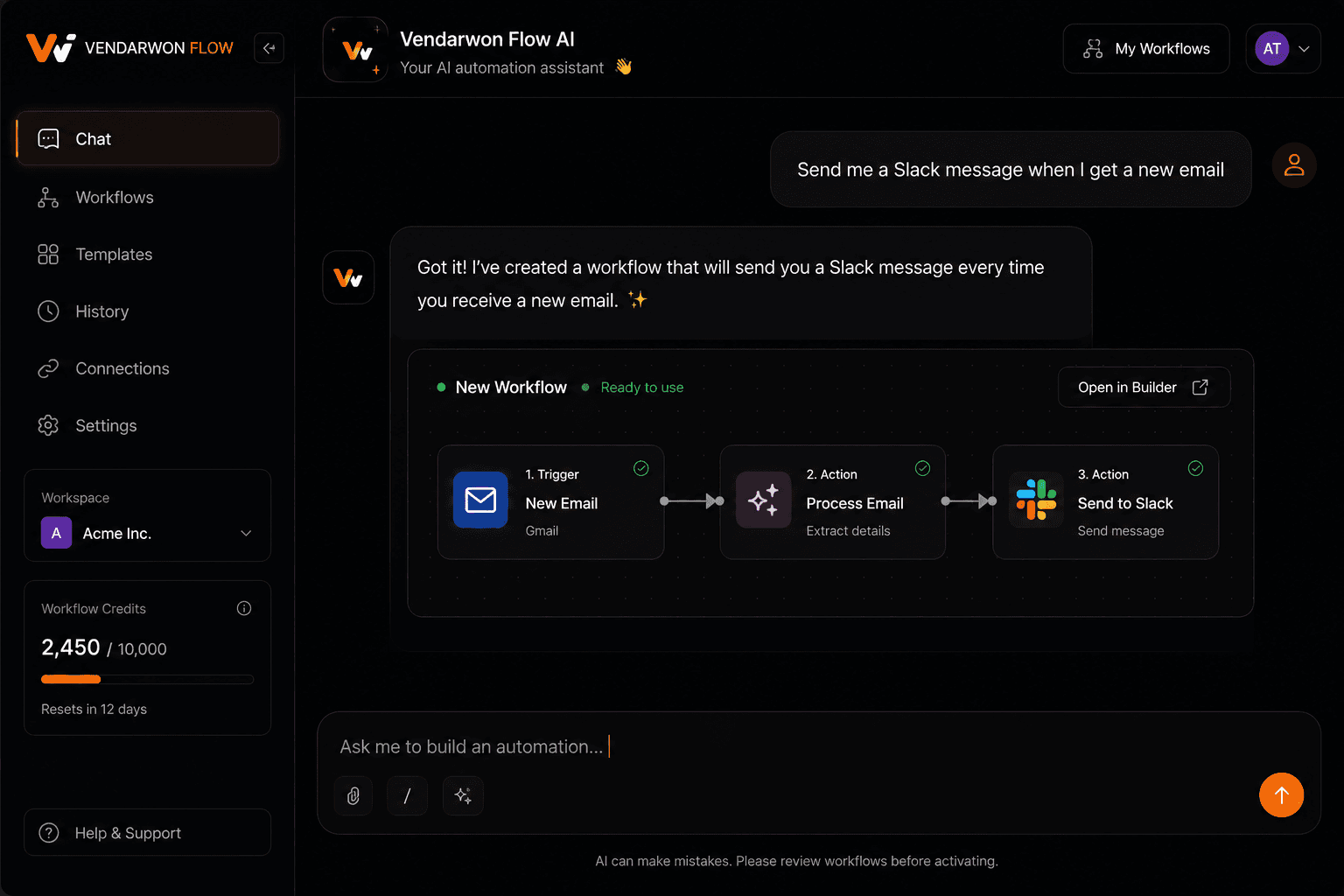
You don't need to understand APIs, webhooks, or JSON to build your first automation. In 2026, anyone can build a working AI workflow in under 20 minutes — by describing what they want in plain English. This guide is for complete beginners who want to stop wasting time on repetitive tasks and start automating today.
What you need to know before you start
You don't need much. You need:
- A Vendarwon Flow account (free, no credit card)
- Access to the apps you want to connect (Gmail, Slack, a CRM, etc.)
- A clear description of the task you want to automate
That's genuinely it. The AI handles the technical work — you just describe what you want to happen.
The 5 key terms every beginner should know
Trigger
The event that starts a workflow. “New email in Gmail.” “New row in Google Sheets.” “New order in Shopify.” “Every Monday at 9am.” There is always exactly one trigger per workflow — it's the starting point.
Action
Something the workflow does automatically. “Send a Slack message.” “Create a contact in HubSpot.” “Add a row to Google Sheets.” A workflow can have multiple actions that run in sequence.
Condition
A decision point. “If the lead score is above 7, notify sales. If not, add to nurture.” Conditions let your workflow take different paths depending on the data it receives.
Integration
A connected app. Gmail is an integration. Slack is an integration. HubSpot is an integration. Vendarwon Flow supports 42+ integrations that you authorize once and then use in any workflow.
Execution
Each time a workflow runs, that's called an execution. If your Gmail trigger fires 10 times today, that's 10 executions. Your plan determines how many executions you can run per month.
Your first 3 automations as a beginner
Automation 1: Email to Slack alert
This is the classic starter automation. Every time a new email arrives in Gmail, you get a Slack notification with the sender and subject.
How to build it on Vendarwon Flow: Go to /create and type: “When I receive a new email in Gmail, send me a Slack message with the sender name, subject, and a preview of the body.” The AI builds the workflow. Connect Gmail and Slack. Activate.
Why it matters: You stop missing important emails and stop checking Gmail every 10 minutes.
Automation 2: Form submission to CRM
Every time someone fills out your contact form, their details automatically appear in HubSpot (or your CRM of choice) as a new contact.
How to build it: Type: “When my webhook receives a form submission with name, email, and company, create a contact in HubSpot with those fields.” The AI generates the workflow with the webhook trigger and HubSpot action pre-configured.
Why it matters: No more copying leads from email to your CRM. Every lead is captured instantly, every time.
Automation 3: Scheduled weekly report
Every Friday at 5pm, pull the latest data from Google Sheets, summarize it with AI, and send it to your team by email.
How to build it: Type: “Every Friday at 5pm, read the data from my Google Sheet [URL], use AI to summarize the key metrics, and send the summary to [email] via Gmail.”
Why it matters: Your weekly report writes and sends itself. You spend zero time on it.
Step-by-step: building your first workflow on Vendarwon Flow
- Sign up at vendarwon.com — free, no credit card.
- Go to Integrations and connect the apps you want to use. For the email→Slack workflow: connect Gmail and Slack. This takes about 2 minutes each and only needs to be done once.
- Go to /create (the chat builder) and describe your workflow in plain English. Be specific about what triggers it and what should happen.
- Review the generated workflow. You'll see a visual flowchart with each step. Check that it looks right.
- Click Activate. The workflow is now live. It runs automatically every time the trigger fires.
- Check Executions. After a few runs, go to the Executions page to confirm everything is working correctly.
Common beginner questions
What if I describe the workflow wrong?
Just edit it. You can go back to the chat builder and refine your description, or edit individual nodes directly in the visual editor. Nothing is permanent until you activate.
What if a workflow stops working?
Check the Executions page — it shows exactly which step failed and why. Most failures are simple: an API credential expired, or a field name changed. Fix it and reactivate.
How many workflows can I run at once?
Unlimited workflows on all plans. Your plan limits executions (runs), not the number of workflows you can have active.
Start your first automation in under 20 minutes
Sign up free on Vendarwon Flow, describe what you want to automate, and the AI builds it for you. No code, no configuration, no tutorials required.
Start building →