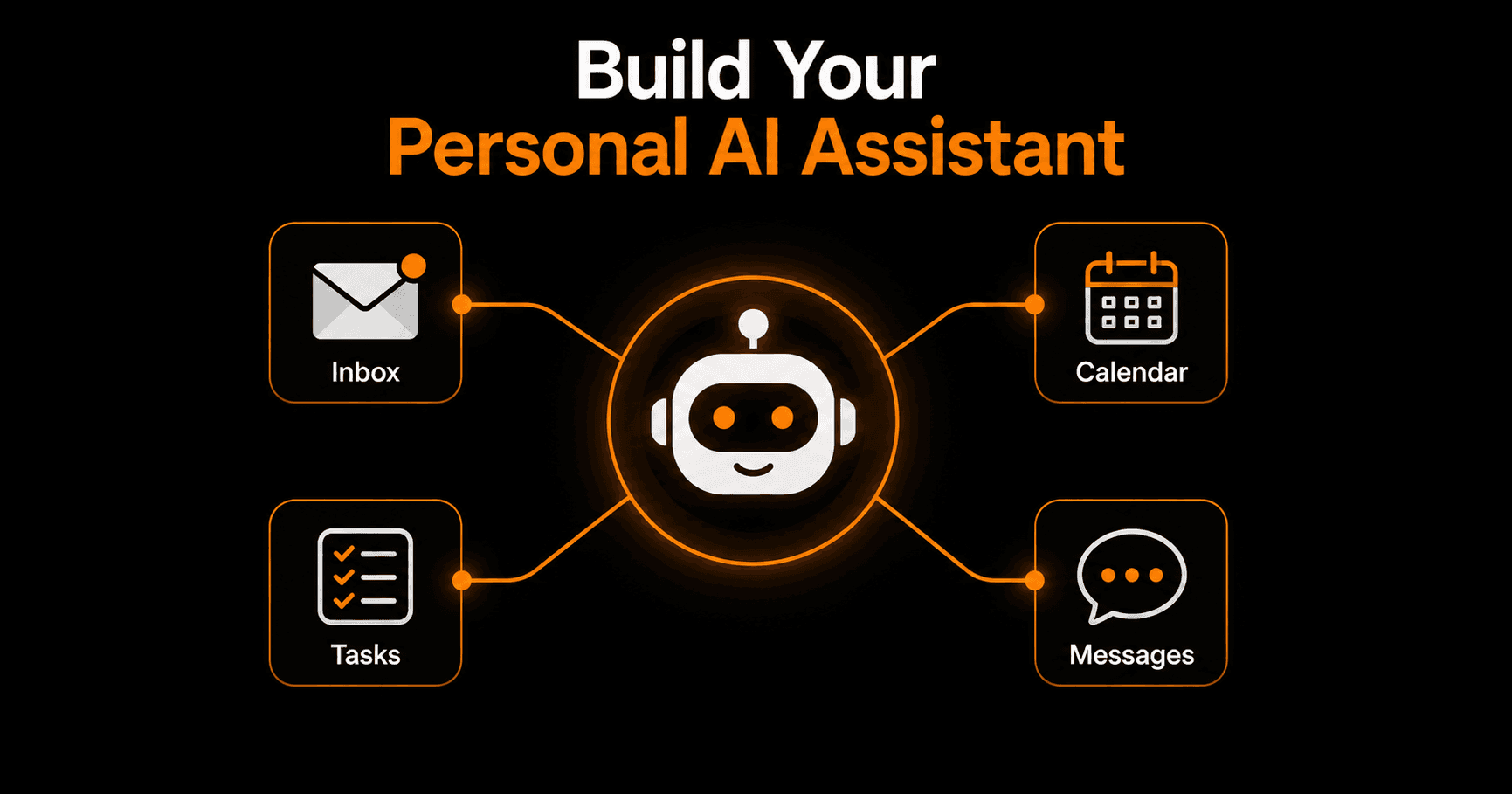
A personal AI assistant isn't a chatbot you type questions into — it's an automated system that reads your inbox, manages your calendar, flags what needs your attention, drafts responses, and handles the low-value tasks that consume hours every week. Here's how to build one in 2026.
What a personal AI assistant actually does
The word “assistant” gets used loosely. For this guide, we're talking about a system that:
- Monitors your inbox and categorizes incoming emails by urgency and type
- Drafts replies to common requests for your review
- Schedules meetings and sends calendar invites based on your rules
- Summarizes long email threads before you read them
- Routes tasks to the right tool automatically (Notion, Asana, Trello)
- Sends you a daily briefing of what needs attention
This isn't science fiction — all of this is buildable today with existing tools, no code, and a few hours of setup.
The core workflow: email arrives → AI reads → AI drafts → you approve
The most valuable assistant workflow is email triage. Here's how it works:
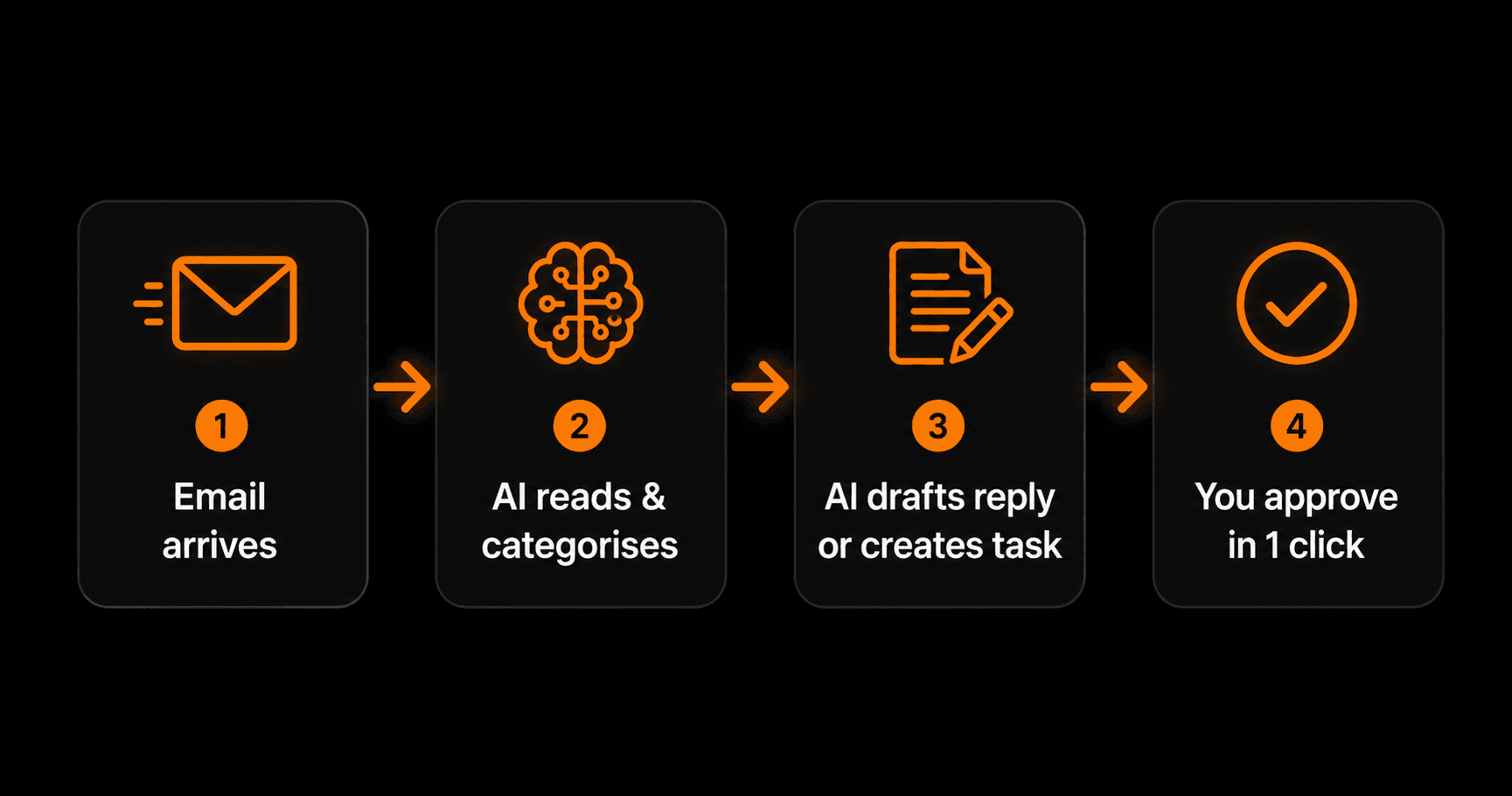
Human-in-the-loop: AI handles the draft, you make the final call
- Email arrives in Gmail. The Gmail trigger in Vendarwon Flow fires within 2 minutes of any new message.
- AI reads and classifies. An AI node reads the email content and classifies it: support request, sales inquiry, partnership offer, newsletter, invoice, personal. Each class routes differently.
- AI drafts a reply. For emails that need a response, the AI generates a draft based on your tone and typical responses. It references context from previous emails in the thread.
- You get a Slack notification. The draft appears in your Slack DM with the original email, the classification, and the draft reply. You see it in seconds, not after digging through your inbox.
- You approve or edit. Click “Send” to dispatch the AI draft, click “Edit” to modify it first, or click “Skip” to handle it yourself. The approval takes 10 seconds instead of 5 minutes.
Build 5 assistant workflows for complete coverage
Workflow 1: Email triage
Trigger: new email in Gmail. Action: AI classifies, drafts reply, sends Slack notification with approve/reject buttons. Handles 60–70% of your inbox automatically.
Workflow 2: Meeting scheduler
Trigger: email contains scheduling request (“let's find a time”, “are you free this week”). Action: AI identifies available slots from your Google Calendar, replies with a Calendly link or proposes 3 specific times.
Workflow 3: Task capture
Trigger: email or Slack message contains action language (“please review”, “can you send”, “by Friday”). Action: AI extracts the task, deadline, and requester, creates a task in Notion or Asana, and confirms receipt.
Workflow 4: Daily briefing
Trigger: cron at 8am every weekday. Action: AI reads your unread emails, pending tasks, and today's calendar. Generates a 5-bullet summary. Sends to your Slack or email. You start every day knowing exactly what matters.
Workflow 5: Invoice processing
Trigger: email with “invoice” in subject or from a vendor. Action: AI extracts amount, vendor, and due date. Creates a row in a Google Sheet invoice tracker. Sends a Slack reminder 3 days before due date.
How to set it up in Vendarwon Flow
- Connect Gmail and Google Calendar. Go to Integrations and authorize Google with one OAuth flow. This grants access to Gmail, Calendar, and Drive simultaneously.
- Connect Slack. Add the Slack integration and select which channel or DM to use for notifications.
- Connect your task manager. Notion, Asana, Trello, ClickUp — connect whichever you use.
- Build the email triage workflow. Describe it: “When a new email arrives, use AI to classify it as support/sales/personal/newsletter, then draft a reply if it needs one, then send me a Slack message with the classification, original email, and draft.”
- Activate and monitor for 3 days. Check every AI classification and draft. Where it's wrong, refine the AI prompt to be more specific about your context and industry.
Prompt engineering your assistant
The quality of your AI assistant depends heavily on how you instruct the AI nodes. Generic prompts give generic results. Specific prompts give accurate results. Example:
Generic:“Classify this email.”
Specific:“You are an assistant for a freelance UX designer. Classify this email as one of: new_client_inquiry, existing_client_request, invoice, partnership, newsletter, or personal. Reply with only the classification label. If uncertain, classify as personal.”
Spend 20 minutes refining your classification prompt in the first week. It pays back in hours of accurate routing every month after.
Frequently asked questions
Is it safe to give an AI access to my email?
Vendarwon Flow uses Gmail OAuth — you authorize specific read/write permissions, you can revoke them at any time, and no credentials are stored in plaintext. The AI processes email content for classification and drafting only; it does not store your emails or use them for training.
Will the AI ever send an email without my approval?
Only if you configure it to. By default, the email triage workflow sends you a draft for approval before sending. The approval step is a human-in-the-loop node — nothing goes out until you click approve.
How accurate is the AI at classifying and drafting?
With a well-written prompt, classification accuracy is typically 85–95%. Draft quality depends on how specific your instructions are and how consistent your email tone is. Most users find they need minimal editing after the first week of tuning.
What does this cost?
Vendarwon Flow's free plan includes 100 workflow executions per month — enough to process 25 emails through 4-step workflows. The Starter plan at $9/month covers 2,000 executions — enough for most professionals who receive 50–100 emails per day.